Tuesday, February 20, 2024

Mastering the Behind Text Effect | Adobe Premiere Pro


Sure, I can provide a basic tutorial on how to create a "behind text" effect in Adobe Premiere Pro:

1. **Import Your Footage**:
   Start by importing your video footage into Adobe Premiere Pro. You can do this by going to File > Import, or simply by dragging and dropping your footage into the project panel.

2. **Create a New Sequence**:
   Right-click on your footage in the project panel and select "New Sequence from Clip" to create a sequence that matches your footage settings.

3. **Add Text**:
   Go to the toolbar and select the Type tool (shortcut: T). Click on the Program Monitor where you want to place your text and type in your desired text.

4. **Adjust Text Properties**:
   With your text selected, you can adjust its properties such as font, size, color, etc., in the Essential Graphics panel or directly in the Program Monitor.

5. **Duplicate Text Layer**:
   Right-click on the text layer in the timeline and select "Duplicate" to create a copy of the text layer.

6. **Position Text Layer Behind Footage**:
   Drag the duplicated text layer below your video footage layer in the timeline.

7. **Adjust Opacity**:
   Select the duplicated text layer in the timeline and lower its opacity in the Effect Controls panel. This will make it appear behind the main text, creating the "behind text" effect.

8. **Adjust Timing (Optional)**:
   You may need to adjust the timing of the text layers to ensure they appear and disappear at the desired times. Simply drag the edges of the text layers in the timeline to adjust their duration.

9. **Preview Your Work**:
   Play back your sequence to preview the "behind text" effect. Make any necessary adjustments until you're satisfied with the result.

10. **Export Your Video**:
    Once you're happy with your project, go to File > Export > Media to export your video with the "behind text" effect intact. Choose your desired export settings and click Export.

That's it! You've successfully created a "behind text" effect in Adobe Premiere Pro. Experiment with different text styles, animations, and effects to customize the look to your liking.

Thursday, February 8, 2024

Floating Island with levitation effects using After Effects


Creating a floating island with levitation effects using After Effects can be a fun and visually captivating project. Here's a general guide on how to achieve this effect:

1. **Plan your scene**: Before you start, sketch out what you want your floating island to look like and where you want it to levitate. Having a clear plan will help streamline the process.

2. **Create the island**: You can use Adobe Photoshop or Illustrator to create the design of your island. Import the design into After Effects as a layered composition.

3. **Set up your composition**: Create a new composition in After Effects and import your island design. Arrange the layers to compose your island scene.

4. **Add levitation effects**:
   - **Keyframe animation**: Use position keyframes to animate the island's movement. You can make it bob up and down or move horizontally.
   - **Scale and rotation**: Experiment with scale and rotation keyframes to add subtle movements and make the island feel more dynamic.
   - **Wiggle expression**: Apply the wiggle expression to the island's position, scale, or rotation properties to add natural-looking movement. For example, you can apply wiggle to simulate wind effects.
   - **Particle effects**: Consider adding particle effects like dust, smoke, or magical energy around the island to enhance the levitation effect.
   - **Lighting effects**: Use After Effects' built-in lighting effects to simulate sunlight or magical glow around the island. This can help integrate it more seamlessly into your scene.

5. **Adjust the environment**:
   - Add background elements such as sky, clouds, or other scenery to complement the floating island.
   - Adjust the lighting and color grading of your composition to match the mood and atmosphere of your scene.

6. **Refine and polish**:
   - Fine-tune the animation by adjusting keyframes and timing.
   - Add additional visual effects like lens flares or glows to enhance the magical atmosphere.
   - Pay attention to details such as shadows and reflections to make the scene look more realistic.

7. **Preview and render**: Once you're satisfied with your composition, preview the animation to make sure everything looks smooth. Then, render your final video.

8. **Optional**: Add sound effects and background music to further enhance the atmosphere of your scene.

Remember to experiment and have fun with different techniques and effects to achieve the desired look for your floating island levitation effect. After Effects offers a wide range of tools and capabilities to bring your creative vision to life.

Wednesday, February 7, 2024

Unveiling the Mystery: Exploring the Phenomenon of UFOs


In the vast expanse of the universe, the existence of unidentified flying objects (UFOs) continues to captivate the human imagination. These enigmatic aerial phenomena, often reported by eyewitnesses across the globe, defy conventional explanation, sparking intense debate and speculation.


The history of UFO sightings dates back centuries, with accounts ranging from ancient civilizations to modern times. While skeptics attribute these sightings to misidentifications of natural phenomena or man-made objects, believers argue that some encounters defy rational explanation.


One of the most famous incidents occurred in 1947, when pilot Kenneth Arnold reported seeing nine high-speed objects near Mount Rainier, Washington, leading to widespread media coverage and public fascination. Subsequent decades witnessed a surge in UFO reports, with government investigations such as Project Blue Book in the United States attempting to uncover the truth behind these sightings.


Advancements in technology have enabled the documentation of UFO encounters through photographs, videos, and radar data, further fueling interest in the phenomenon. Despite efforts to dismiss UFOs as hoaxes or hallucinations, credible eyewitness testimonies from pilots, military personnel, and astronauts persist, challenging conventional skepticism.


The search for extraterrestrial life and the possibility of intelligent civilizations beyond Earth adds an intriguing dimension to the UFO debate. Scientists continue to explore distant planets and moons for signs of habitability, while organizations like SETI (Search for Extraterrestrial Intelligence) listen for potential signals from alien civilizations.


While the true nature of UFOs remains elusive, their presence continues to inspire curiosity and speculation. Whether glimpses of advanced technology, natural anomalies, or glimpses into the unknown depths of space, the mystery of UFOs reminds us of the boundless wonders of the cosmos and the enduring quest to unravel its secrets.

Al-Aqsa Mosque: A Beacon of Muslim Glory Through History


In the heart of Jerusalem's Old City stands a symbol of profound significance for Muslims around the world: Al-Aqsa Mosque. Its golden dome and serene surroundings belie a rich history that spans centuries, embodying the enduring legacy of Islam and its cultural, spiritual, and architectural contributions.


### Origins and Significance

Tuesday, February 6, 2024

Forest Fire VFX - After Effects


Creating a forest fire visual effect (VFX) in After Effects can be quite engaging. Below, I'll outline a basic process to get you started. Note that this is a simplified version, and you may want to explore additional techniques and adjustments based on your specific requirements and preferences. 1. *Gather Reference Material:* Collect reference images or videos of forest fires to understand how they behave, the colors involved, and the overall dynamics. 2. *Setting Up the Project:* Open After Effects and create a new composition with your desired settings (resolution, frame rate, duration). 3. *Create the Fire Base:* - Create a new solid layer (Layer - New - Solid) and name it "Fire Base." - Apply the Fractal Noise effect (Effect Noise & Grain Fractal Noise) to the solid. - Adjust the settings of the Fractal Noise effect to resemble the base of the fire. You may want to increase the Contrast and decrease the Scale to create a fiery texture. 4. *Adding Color and Glow:* - Apply the Tritone effect (Effect - Color Correction - Tritone) to the Fire Base layer. Adjust the colors to match those of fire (typically red, orange, and yellow). - Apply the Glow effect (Effect - Stylize - Glow) to the Fire Base layer to give it a more fiery appearance. Adjust the Glow Threshold, Glow Radius, and Glow Intensity to achieve the desired effect. 5. *Animating the Fire:* - Add keyframes to animate the Evolution property of the Fractal Noise effect to create the illusion of flames flickering. - You can also animate the Opacity property of the Fire Base layer to simulate the fire's intensity fluctuating over time. 6. *Adding Smoke and Embers (Optional):* - Create additional solid layers for smoke and embers using similar techniques as above. - Apply effects like Particle Playground or Particle Systems II for generating smoke and embers. - Experiment with various settings to achieve a realistic look, including opacity, size, velocity, and gravity. 7. *Composite Elements:* - Arrange the fire, smoke, and embers layers in the composition to create a convincing forest fire scene. - Use blending modes (e.g., Add or Screen) to blend the elements together realistically. - Adjust the layer's position, scale, and rotation to fit the scene properly. 8. *Finishing Touches:* - Add camera shake, if desired, to simulate the turbulence caused by the fire. - Apply color correction and grading to match the overall look and feel of your scene. - Add sound effects to enhance the realism of the forest fire. 9. *Preview and Render:* - Preview your composition to make sure everything looks as intended. - Once satisfied, render your composition (Composition Add to Render Queue) using the desired settings and format. 10. *Feedback and Refinement:* - Seek feedback from peers or mentors and refine your composition based on their suggestions. - Make adjustments as necessary to improve the realism and visual impact of the forest fire effect. Remember to experiment and refine your technique based on your specific requirements and artistic vision. Additionally, there are numerous tutorials and resources available online that delve deeper into creating realistic fire effects in After Effects.


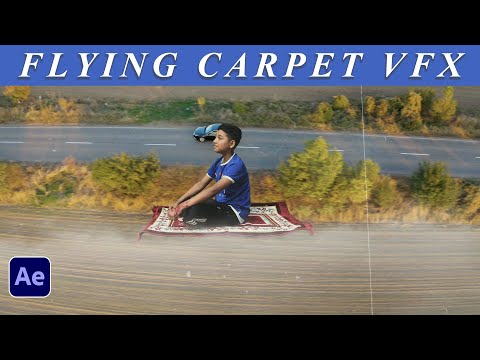
Fly on a Carpet like Aladin | Carpet flying VFX | After Effects |

Creating a flying carpet effect like Aladdin's magic carpet in After Effects can be a fun project! Here's a simple step-by-step guid...