Friday, March 29, 2024

Mastering Levitation Effects in After Effects: Create Magical Floating Scene


Levitation refers to the act of floating or rising above the ground without any apparent physical support. Throughout history, levitation has been a subject of fascination and mysticism, often associated with supernatural or paranormal phenomena. However, in the realm of science and technology, levitation can be achieved through various means, including:

1. **Magnetic Levitation (Maglev)**: This method uses magnetic fields to counteract gravitational pull, allowing objects to float or hover above a magnetic surface. Maglev trains, for example, use this principle to achieve high-speed travel by levitating above the tracks, reducing friction and enabling smooth movement.

2. **Acoustic Levitation**: Sound waves can create pressure nodes in space, where objects can be trapped and levitated. By using carefully controlled sound waves, objects can be lifted and moved without physical contact.

3. **Electrostatic Levitation**: Electrically charged objects can repel each other, resulting in levitation. Electrostatic levitation is often used in laboratories to suspend objects for experimentation or to simulate microgravity environments.

4. **Optical Levitation**: Laser beams can create a force called "optical tweezers," which can trap and levitate small particles. This technique is commonly used in physics and biology research to manipulate microscopic objects.

5. **Superconducting Levitation**: Superconductors, when cooled below their critical temperature, exhibit the Meissner effect, which causes them to repel magnetic fields. This effect can be used to levitate magnets above superconducting materials, resulting in stable levitation.

While these methods demonstrate various ways levitation can be achieved, levitating large or heavy objects for extended periods remains a significant technological challenge. Nonetheless, ongoing research and advancements in physics and engineering continue to push the boundaries of what is possible in levitation technology.

Monday, March 25, 2024

1971 March 26th A Landmark in Bangladeshi History | Happy Independence Day Bangladesh


**March 26th: A Landmark in Bangladeshi History**

March 26th holds a special place in the hearts of Bangladeshis as it marks the beginning of a historic struggle for independence and the birth of a nation. This date commemorates the declaration of independence by Bangabandhu Sheikh Mujibur Rahman, the Father of the Nation of Bangladesh, in 1971. The events that unfolded on this day laid the foundation for the liberation war against the oppressive rule of West Pakistan, ultimately leading to the birth of Bangladesh as an independent nation.

The significance of March 26th can be traced back to the tumultuous political landscape of the Indian subcontinent in the mid-20th century. Following the partition of British India in 1947, East Bengal became a part of Pakistan, despite stark cultural, linguistic, and economic differences with West Pakistan. Over the years, the people of East Bengal, known as Bengalis, faced discrimination and marginalization at the hands of the ruling elite in West Pakistan.

In the face of growing discontent and demand for autonomy, Sheikh Mujibur Rahman emerged as the voice of the Bengali people. His stirring speeches and unwavering commitment to the cause of self-determination galvanized the masses and ignited a movement for autonomy and equality. The 1970 general elections, where Mujib's Awami League secured a landslide victory, further fueled aspirations for autonomy in East Pakistan.

However, the ruling authorities in West Pakistan, unwilling to relinquish their grip on power, refused to honor the electoral mandate and instead resorted to repression and violence. This culminated in a brutal crackdown on March 25th, 1971, known as Operation Searchlight, where the Pakistani military launched a campaign of atrocities against innocent civilians, students, intellectuals, and political activists in Dhaka, the capital of East Pakistan.

In response to the atrocities perpetrated by the Pakistani military junta, Sheikh Mujibur Rahman, in his historic speech broadcasted on March 26th, 1971, declared the independence of Bangladesh. His impassioned call to arms resonated with millions of Bangladeshis, inspiring them to join the struggle for freedom and dignity. The proclamation of independence marked the beginning of a nine-month-long war of liberation, during which the people of Bangladesh exhibited unparalleled bravery, resilience, and sacrifice.

The Liberation War of 1971 was a testament to the indomitable spirit of the Bangladeshi people. Despite facing a heavily armed and well-trained adversary, ordinary citizens, including farmers, students, and workers, joined the Mukti Bahini (freedom fighters) to resist the occupation forces. The war witnessed acts of extraordinary heroism and solidarity, as Bangladeshis from all walks of life united under the banner of independence.

After months of fierce fighting and international diplomatic efforts, Bangladesh achieved victory on December 16th, 1971, when the Pakistani military surrendered to the joint forces of Bangladesh and India. The birth of Bangladesh as an independent and sovereign nation marked the culmination of a long and arduous struggle for self-determination and freedom.

March 26th serves as a reminder of the sacrifices made by countless individuals who laid down their lives for the cause of freedom and justice. It is a day to honor the memory of the martyrs and veterans of the Liberation War and to reaffirm the principles of democracy, human rights, and national unity. The resilience and determination displayed by the people of Bangladesh during the struggle for independence continue to inspire future generations to uphold the values of liberty, equality, and fraternity.

In conclusion, March 26th occupies a prominent place in Bangladeshi history as the day when the flame of independence was ignited, leading to the birth of a sovereign nation. It serves as a symbol of courage, resilience, and unity in the face of adversity, reminding us of the power of ordinary people to effect extraordinary change.

Saturday, March 16, 2024

Ramadan Kareem Mubarak | After Effects Compositing | Muslim Ummah | Xirno |


Ramadan Kareem to you all! May this holy month be filled with blessings, peace, and spiritual growth for you and your loved ones.

Don't forget to like, comment, and subscribe for more Ramadan-related content!

#RamadanKareem #Fasting #Spirituality #IslamicTraditions #MuslimCommunity #RamadanTips #Blessings #YouTube #SubscribeNow

Tuesday, March 5, 2024

Super Moon With Water Reflection | After Effect Compositing | Adobe creative Cloud


To create a composition of a supermoon with a water reflection using Adobe Creative Cloud, particularly After Effects, you can follow these steps:

1. **Gather Resources**:
   - Find a suitable image or video of a supermoon.
   - Locate an image or video of water with a reflection.

2. **Import Assets into After Effects**:
   - Open After Effects.
   - Import the supermoon image or video and the water image or video into your project.

3. **Create a New Composition**:
   - Go to the "Composition" menu and select "New Composition."
   - Set the dimensions and duration of your composition according to your project requirements.

4. **Arrange Layers**:
   - Drag the supermoon image or video into the timeline.
   - Drag the water image or video below the supermoon layer in the timeline.

5. **Scale and Position**:
   - Adjust the scale and position of the supermoon layer to fit the composition.
   - Make sure the reflection in the water layer lines up with the supermoon above it.

6. **Apply Reflection Effect**:
   - Select the water layer.
   - Right-click on the layer and go to "Effect" > "Perspective" > "CC Flo Motion."
   - Adjust the settings of the CC Flo Motion effect to create a realistic water reflection.
   - You may need to tweak parameters like displacement, amplitude, and scale to achieve the desired effect.

7. **Blend Reflection with Water**:
   - Experiment with the opacity and blending modes of the water layer to make the reflection blend seamlessly with the water surface.
   - You can try blending modes like "Screen," "Overlay," or "Soft Light" for natural-looking results.

8. **Add Additional Effects** (Optional):
   - Apply color correction or grading to enhance the overall look of the composition.
   - Consider adding subtle ripple effects to the water layer to simulate movement.

9. **Preview and Render**:
   - Preview your composition to ensure everything looks as expected.
   - Once satisfied, go to the "Composition" menu and select "Add to Render Queue."
   - Configure render settings such as output format, resolution, and quality.
   - Click on "Render" to export your final composition.

10. **Final Touches**:
    - Import the rendered video into Adobe Premiere Pro or another editing software for further adjustments if necessary.
    - Add music, sound effects, or any other elements to complete your project.

By following these steps, you can create a captivating composition of a supermoon with a water reflection using Adobe After Effects. Remember to experiment with different effects and techniques to achieve the desired visual impact.

Saturday, March 2, 2024

"Creating Realistic Snowfall in Adobe After Effects: Easy Tutorial for Stunning Winter Effects!"


Creating fake snowfall in Adobe After Effects can be accomplished using various techniques. Here's a simple step-by-step guide to get you started:

1. **Create a New Composition**: Open After Effects and create a new composition by clicking on "Composition" > "New Composition". Set the desired resolution and duration for your project.

2. **Create a New Solid Layer**: Right-click in the timeline, go to "New" > "Solid". Choose a color that contrasts well with white, like dark blue or black, as this will be the background for your snow.

3. **Apply the CC Snowfall Effect**: With your solid layer selected, go to "Effect" > "Simulation" > "CC Snowfall". This will create a basic snowfall effect.

4. **Adjust Settings**: In the Effects Control Panel, you'll find various parameters you can adjust to customize the snowfall:
   - *Size*: Adjusts the size of the snowflakes.
   - *Speed*: Controls the speed at which the snow falls.
   - *Opacity*: Sets the transparency of the snowflakes.
   - *Direction*: Changes the direction from which the snow falls.
   - *Wind*: Simulates wind affecting the snowfall.

5. **Duplicate Snow Layer (Optional)**: You can duplicate the snow layer to create a denser snowfall effect. Select the snow layer in the timeline, then press "Ctrl + D" (Windows) or "Cmd + D" (Mac) to duplicate it.

6. **Adjust Layer Opacity (Optional)**: You may want to adjust the opacity of your snow layers to make the effect look more natural. Lowering the opacity can help simulate lighter snowfall.

7. **Add Depth (Optional)**: To create a sense of depth, you can duplicate your snow layers and adjust their sizes, speeds, and opacities to create different layers of snowfall.

8. **Add Adjustment Layers (Optional)**: You can further enhance your snowfall effect by adding adjustment layers with effects like "Gaussian Blur" or "Curves" to simulate depth of field or adjust the overall look of your scene.

9. **Preview and Adjust**: Preview your composition to see how the snowfall looks. Make any necessary adjustments to the settings until you're satisfied with the result.

10. **Export Your Composition**: Once you're happy with your snowfall effect, you can export your composition by going to "Composition" > "Add to Render Queue". Configure the render settings and click on "Render" to export your video with the fake snowfall effect.

With these steps, you should be able to create a convincing fake snowfall effect in Adobe After Effects. Experiment with different settings and techniques to achieve the desired look for your project.

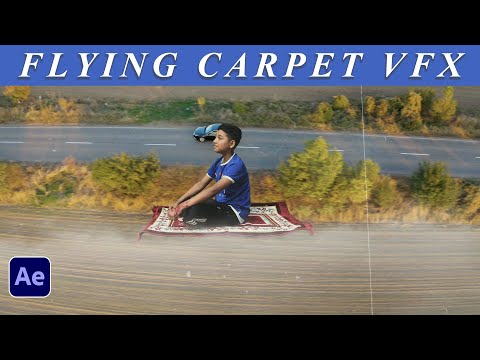
Fly on a Carpet like Aladin | Carpet flying VFX | After Effects |

Creating a flying carpet effect like Aladdin's magic carpet in After Effects can be a fun project! Here's a simple step-by-step guid...